Obscura Headless Browser: Install and Use It on Windows
Obscura is an open-source headless browser written in Rust, built for AI agents and web scraping. It runs real JavaScript through V8, speaks the Chrome DevTools Protocol, and its README pitches it as a drop-in replacement for headless Chrome with Puppeteer and Playwright. We installed it on a Windows 11 PC, verified the download, fetched pages from the command line and drove it from Python Playwright. Here is exactly what we ran, what came back, and where it fell short of real Chrome.
- Install is a single zip: two executables and two runtime DLLs. No Chrome, no Node.js.
obscura fetchloads a page, runs its JavaScript and returns text, HTML, links or Markdown in one command.obscura serveexposes a DevTools endpoint that Playwright connected to with no changes.- Screenshots of modern layouts did not always match Chrome in our tests, so check visual output in a real browser.
What Obscura is
The project lives at github.com/h4ckf0r0day/obscura under the Apache-2.0 license. When we checked on November 28, 2026 it had about 37,800 GitHub stars and its latest release was v0.2.7 (November 13, 2026). The README compares it with headless Chrome:
| Claim from the README | Obscura | Headless Chrome |
|---|---|---|
| Memory | 30 MB | 200+ MB |
| Binary size | ~70 MiB | 300+ MB |
| Page load | 85 ms | ~500 ms |
| Startup | Instant | ~2 s |
| Puppeteer / Playwright | Yes | Yes |
Step 1: Download the right Windows build
Every release ships four Windows variants. The suffix tells you what is inside:
| Archive | Renders pages | Stealth transport |
|---|---|---|
obscura-x86_64-windows.zip | Yes | No |
…-windows-stealth.zip | Yes | Yes |
…-windows-no-render.zip | No | No |
…-windows-no-render-stealth.zip | No | Yes |
We used the default build. With the GitHub CLI installed, this downloads it from the official release:
gh release download v0.2.7 -R h4ckf0r0day/obscura -p obscura-x86_64-windows.zipThe file was 72,427,564 bytes. Always compare the checksum with the one GitHub lists for the release asset before running anything you downloaded:
sha256sum obscura-x86_64-windows.zip
be983b663552e11faf8c1e07696578bad622dbeb48afb9f59036032ca8e97fb3
Step 2: Unzip and add it to PATH
The archive contains four files. Keep them together in one folder: the README says the runtime DLLs must sit beside both executables, and the parallel scrape command needs obscura-worker.exe next to obscura.exe.
obscura.exe          79,393,280 bytes
obscura-worker.exe   73,161,728 bytes
vcruntime140.dll        178,616 bytes
vcruntime140_1.dll       50,112 bytes
Add that folder to your user PATH, open a new terminal, and confirm the version:
obscura --version
obscura 0.2.7
If you use Scoop, the README also documents a manifest install that places both binaries and adds shims for you.
Step 3: Fetch a page from the command line
fetch loads a URL, runs the page’s JavaScript, and can evaluate an expression in the page. Our first test:
obscura fetch https://example.com --eval "document.title"

Fetching https://example.com...
Page loaded: https://example.com/ - "Example Domain"
Example Domain
Instead of --eval, the --dump option returns the page in a ready-to-use format. The values listed by obscura fetch --help in v0.2.7 are html, text, links, markdown, original (the raw response, useful for images or JSON), assets (every sub-resource the page references, one JSON object per line) and cookies. Markdown is the one to reach for when you feed pages to a language model:
obscura fetch https://example.com --dump markdownTwo flags worth knowing: --wait sets how long to let the page settle (the default is an adaptive wait capped at five seconds), and the global --obey-robots flag makes fetch and scrape respect a site’s robots.txt. If you collect data from sites you don’t own, turn it on.
Step 4: Drive it from Playwright
obscura serve starts a DevTools endpoint. The default port is 9222, which collides with Chrome’s own remote debugging if you use that, so pick another:
obscura serve -p 9555Its /json/version endpoint answered like a normal Chromium:
"Browser": "Chrome/145.0.0.0",
"Protocol-Version": "1.3",
"User-Agent": "Mozilla/5.0 (X11; Linux x86_64) AppleWebKit/537.36 (KHTML, like Gecko) Chrome/145.0.0.0 Safari/537.36"
Note the default user agent reports Linux even on Windows. If a site serves different content by platform, set it explicitly with the global --user-agent flag. Then connect from Python exactly as you would to Chrome:
from playwright.sync_api import sync_playwright

with sync_playwright() as p:
    browser = p.chromium.connect_over_cdp("http://127.0.0.1:9555")
    ctx = browser.contexts[0] if browser.contexts else browser.new_context()
    page = ctx.new_page()
    page.goto("https://example.com", wait_until="domcontentloaded")
    print(page.title())
    page.screenshot(path="example.png")
We used this setup to open, measure and screenshot sixteen large websites in one script (news sites, developer blogs and documentation). All sixteen loaded and returned their computed styles.
Where it differed from Chrome
We also used Obscura to screenshot pages while redesigning this site, then compared the same pages in desktop Chrome. Text and data matched, but the rendering did not always:
Here is a direct test you can repeat. We opened the Wikipedia article on headless browsers at 1280×800 in Obscura v0.2.7 (driven by Playwright over obscura serve) and in Playwright’s bundled Chromium, and took a screenshot in each:
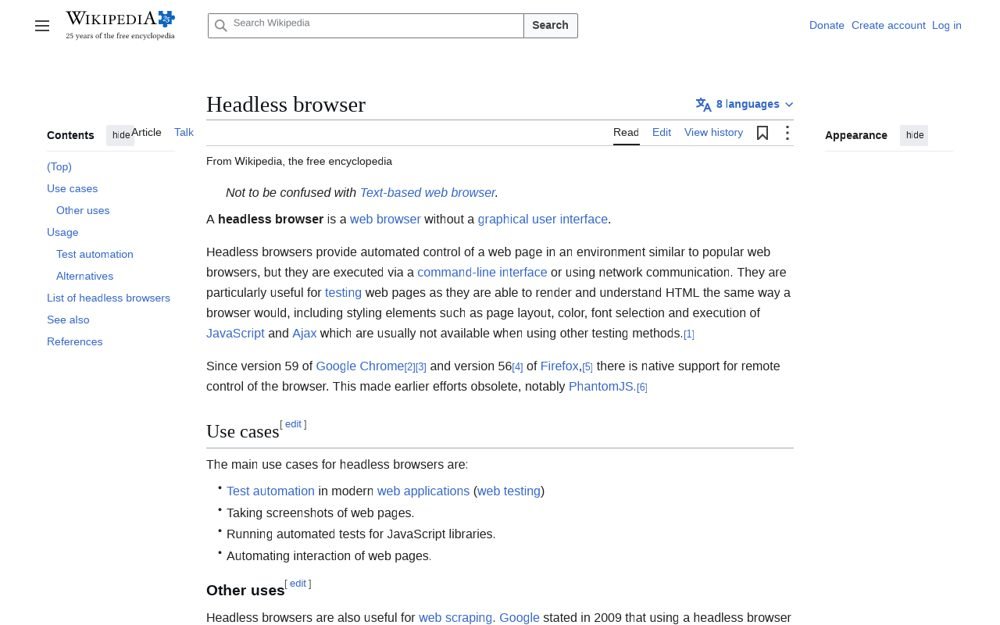
Obscura v0.2.7
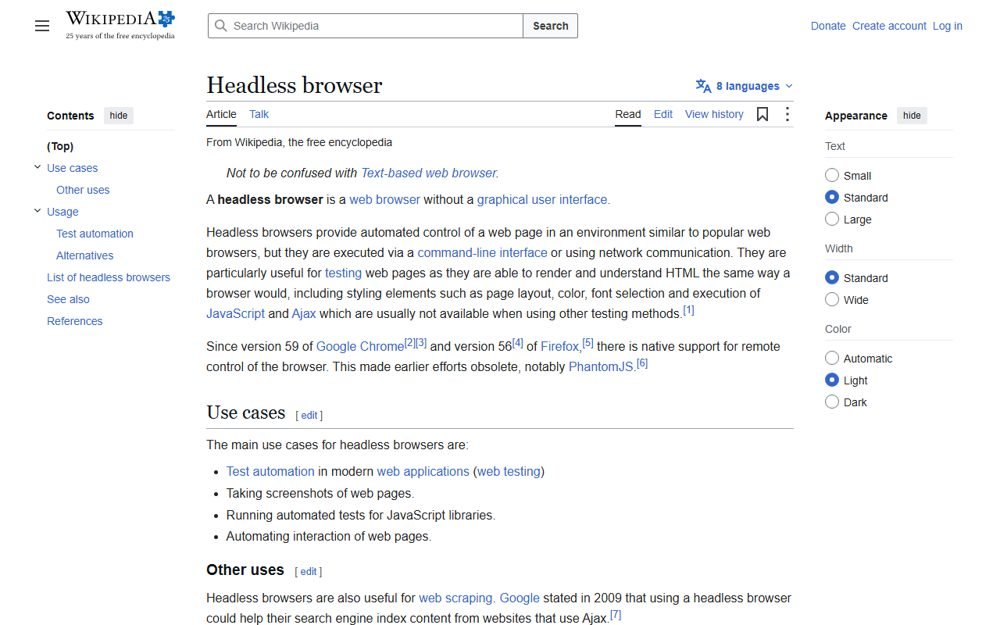
Chromium (Playwright)
- A flexbox navigation menu that sits on one line in Chrome rendered with its items wrapped and overlapping.
- A paragraph width limited with
max-width: 68chwas ignored, so text ran the full width of the page. - Some web fonts fell back to system fonts in screenshots.
Native rendering is new in Obscura, so this may improve quickly. For now, treat it as excellent for extracting text, links and data, and use real Chrome when pixels matter, such as visual regression tests or design reviews.
Who should use it
- Want an agent to drive a full browser instead? Compare Chrome DevTools MCP vs Playwright MCP.
- Good fit: AI agents and pipelines that need page text or Markdown from JavaScript-heavy sites, scripts that already speak Playwright or Puppeteer, and machines where installing Chrome is a hassle.
- Not yet: pixel-perfect screenshots, PDF output you need to match Chrome exactly, or anything where a rendering difference would break your results.
Tested by Mediaxiss on Windows 11 with Obscura v0.2.7, November 28, 2026. Obscura’s own performance figures are quoted from its README and were not independently measured.